Know what’s on your site before a plaintiff’s firm does
A free privacy audit shows which cookies, pixels and trackers are running — and which ones commonly appear in privacy claims.
A session cookie is a small, temporary piece of data a website stores in your browser to remember who you are while you’re actively using that site. It holds a unique “session ID” that gets sent back to the server with every page you visit, so the site can keep you logged in, remember what’s in your shopping cart, and treat your visit as one continuous experience instead of a string of disconnected page loads. Unlike other cookies, a session cookie has no expiration date — it’s designed to disappear the moment you close your browser.
Below, we’ll cover exactly what session cookies are used for, walk through a real example, explain how they differ from persistent cookies, and show you how to actually find and inspect one in your own browser.
Session cookies at a glance
- A session cookie stores a unique session ID and is deleted automatically when you close your browser.
- It’s what keeps you logged in, keeps items in your cart, and remembers form progress as you move between pages on the same site.
- It’s different from a persistent cookie, which has a set expiration date and can stick around for days, months, or years.
- Session cookies are generally classified as “strictly necessary,” meaning most privacy laws don’t require a consent banner just for these.
- You can view any site’s session cookie yourself in under a minute using your browser’s built-in developer tools — no special “decoder” tool required.
What is a session cookie used for?
A session cookie exists to solve one specific problem: the web is stateless. Every time your browser requests a page, the server treats it as a brand-new, anonymous request — it has no built-in memory of who you are or what you did one click ago. Session cookies patch that gap by giving the server a way to recognize “this request belongs to the same visit as the last one.”
What Is a Session Cookie? Definition, Examples & How to Find One
In practice, that translates into a handful of everyday jobs:
- Keeping you logged in. Once you enter your password, a session cookie is what lets you click to a different page on the same site without being asked to log in again.
- Shopping carts. Add an item on one product page, browse to another, and it’s still there — that’s a session cookie holding your cart state.
- Multi-step forms. Checkout flows, applications, and surveys use session cookies to remember what you’ve already filled in as you move to the next step.
- Temporary preferences. Language selection, currency, or filters you set can be held for the length of your visit even before you’ve created an account.
- Security checks. Some anti-fraud and CSRF (cross-site request forgery) protections rely on a session cookie to confirm a request actually came from your active browsing session.
- Single-visit analytics. Some analytics tools use a session cookie to group all the pages you viewed in one visit together, without needing to know who you are across future visits.
Session cookie example
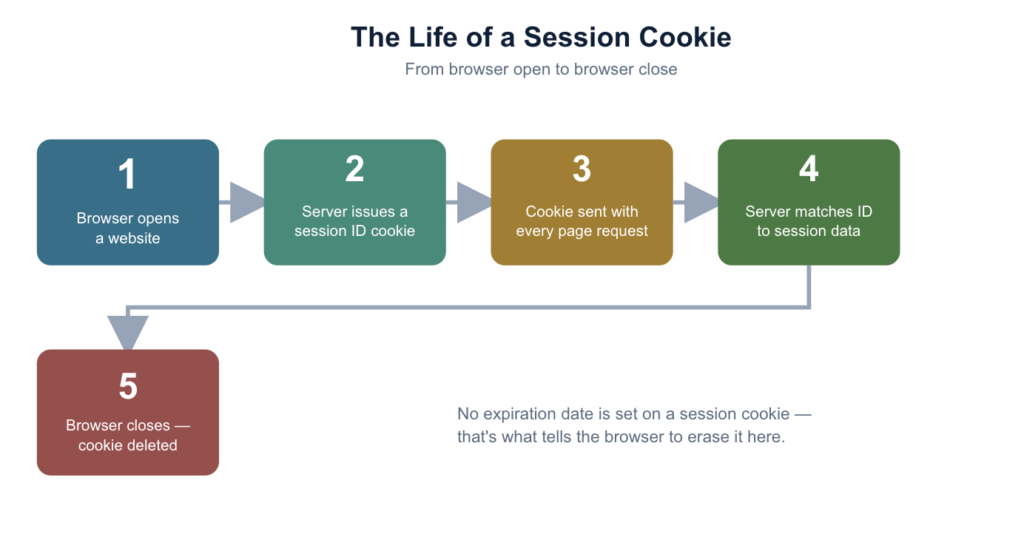
Here’s what actually happens, step by step, when you visit an online store and add something to your cart:
- You land on the site. The server generates a random, unique session ID — something like
a92f6e31bd4c...— and sends it to your browser as a cookie. - Your browser stores that cookie in memory and attaches it to every subsequent request you make on that site.
- You add a pair of shoes to your cart. The server stores “cart contains: shoes” against your session ID on its own end — not inside the cookie itself.
- You click over to a different product page. Your browser sends the same session ID along with the request, so the server knows it’s still you and your cart is still intact.
- You close the browser tab. The cookie is discarded, and if you come back an hour later, you’ll be issued a brand-new session ID and an empty cart — unless the site also uses a separate persistent cookie to remember you.
A real session cookie set by a server might look like this in your browser’s cookie storage:
Name: JSESSIONID
Value: F1A2B3C4D5E6F7A8B9C0D1E2F3A4B5C6
Domain: example.com
Path: /
Expires: Session (no fixed expiration date)
Secure: true
HttpOnly: true
SameSite: Lax
Notice the “Expires” field: it says “Session” instead of a specific date. That’s the technical signature of a session cookie — it tells the browser “delete me when this browsing session ends,” rather than giving a fixed lifespan.
What are cookies in a browser?
A cookie, broadly, is a small text file — typically just a name, a value, and a handful of settings — that a website asks your browser to store on your device. Your browser then sends that cookie back to the site (and only that site, in most cases) on every future request, which is how the site “remembers” things about your visit.
Cookies generally fall into a few categories, based on who sets them and how long they last:
- Session cookies: No fixed expiration; deleted when the browser closes. Used for logins, carts, and temporary state.
- Persistent cookies: Have a set expiration date and remain on your device across visits. Used to remember you, your preferences, or your login across sessions.
- First-party cookies: Set directly by the website you’re visiting.
- Third-party cookies: Set by a domain other than the one in your address bar — typically ad networks, embedded widgets, or analytics scripts — and used to track behavior across multiple sites.
- Strictly necessary cookies: Required for the site to function at all (this usually includes session cookies), and generally exempt from consent requirements under most privacy laws.
Every modern browser lets you view, manage, and delete these cookies directly — we’ll walk through exactly where to find that screen further down.
Session vs. cookies, explained in detail with an example
This is one of the most commonly confused pairs of terms in web development, largely because the words get used loosely. Here’s the precise distinction:
- A session is server-side state — the actual data (cart contents, login status, form progress) that the web application stores in its own memory or database, tied to one visitor’s active visit.
- A cookie is client-side storage — the small file sitting in your browser that the server uses to identify which session belongs to you.
Put simply: the session is the filing cabinet sitting in the server room; the session cookie is the claim ticket in your pocket that tells the clerk which drawer to open.
Worked example. Say you log into your email:
- You submit your username and password.
- The server verifies your credentials, then creates a session record on its own backend containing your account ID and login timestamp.
- It generates a session ID (a random string) that points to that record, and sends it to your browser as a session cookie.
- Every time you click “Inbox,” “Compose,” or “Settings,” your browser sends that session ID back with the request.
- The server looks up the session ID, finds your account record, and returns your inbox — without ever asking you to log in again mid-visit.
- Log out (or close the browser), and both the server-side session and the browser’s session cookie are cleared.
This is why the actual sensitive data (your account details, permissions, cart contents) rarely lives inside the cookie itself — the cookie usually just carries a reference ID, while the meaningful data stays safely on the server.
What are persistent cookies?
A persistent cookie (sometimes called a “permanent” or “tracking” cookie) is the counterpart to a session cookie: instead of expiring when the browser closes, it comes with a specific expiration date baked in — anywhere from a day to several years out — and survives across multiple visits and browser restarts.
Common uses of persistent cookies include:
- “Remember me” logins that keep you signed into an app across days or weeks without re-entering a password.
- Saved preferences like language, currency, dark mode, or dismissed banners that persist the next time you visit.
- Returning-visitor recognition for personalization — recommending products based on what you looked at last time.
- Advertising and analytics tracking that follows a device across days or weeks to measure repeat visits or ad performance.
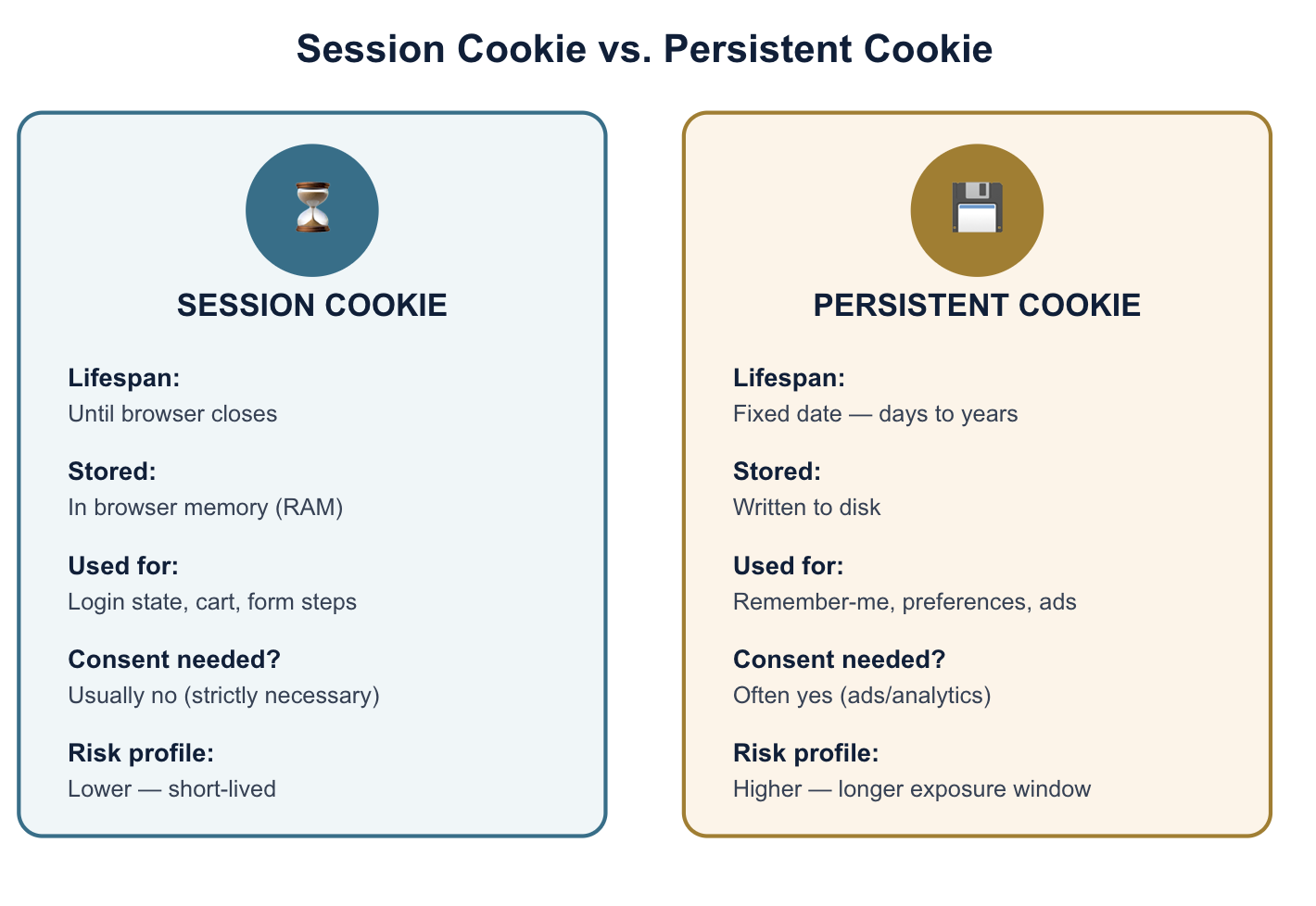
The table below sums up the practical differences:
| Session cookie | Persistent cookie | |
|---|---|---|
| Lifespan | Until the browser closes | Fixed expiration date (days to years) |
| Stored where | Browser memory (RAM) | Written to disk |
| Typical use | Login state, cart, form progress | Remember-me logins, preferences, ad tracking |
| Consent usually required? | Generally no (strictly necessary) | Often yes, especially for advertising/analytics use |
| Privacy risk profile | Lower — short-lived | Higher — longer window for misuse if compromised |
Session cookie decoder: how to actually read one
People often search for a “session cookie decoder” expecting some kind of tool that will crack a session ID open and reveal what’s inside. In reality, a well-built session cookie value is just a random string with no embedded meaning — there’s nothing to “decode,” because the actual data lives on the server, not in the cookie. What you can do is inspect the cookie your browser is holding, using tools already built into every modern browser:
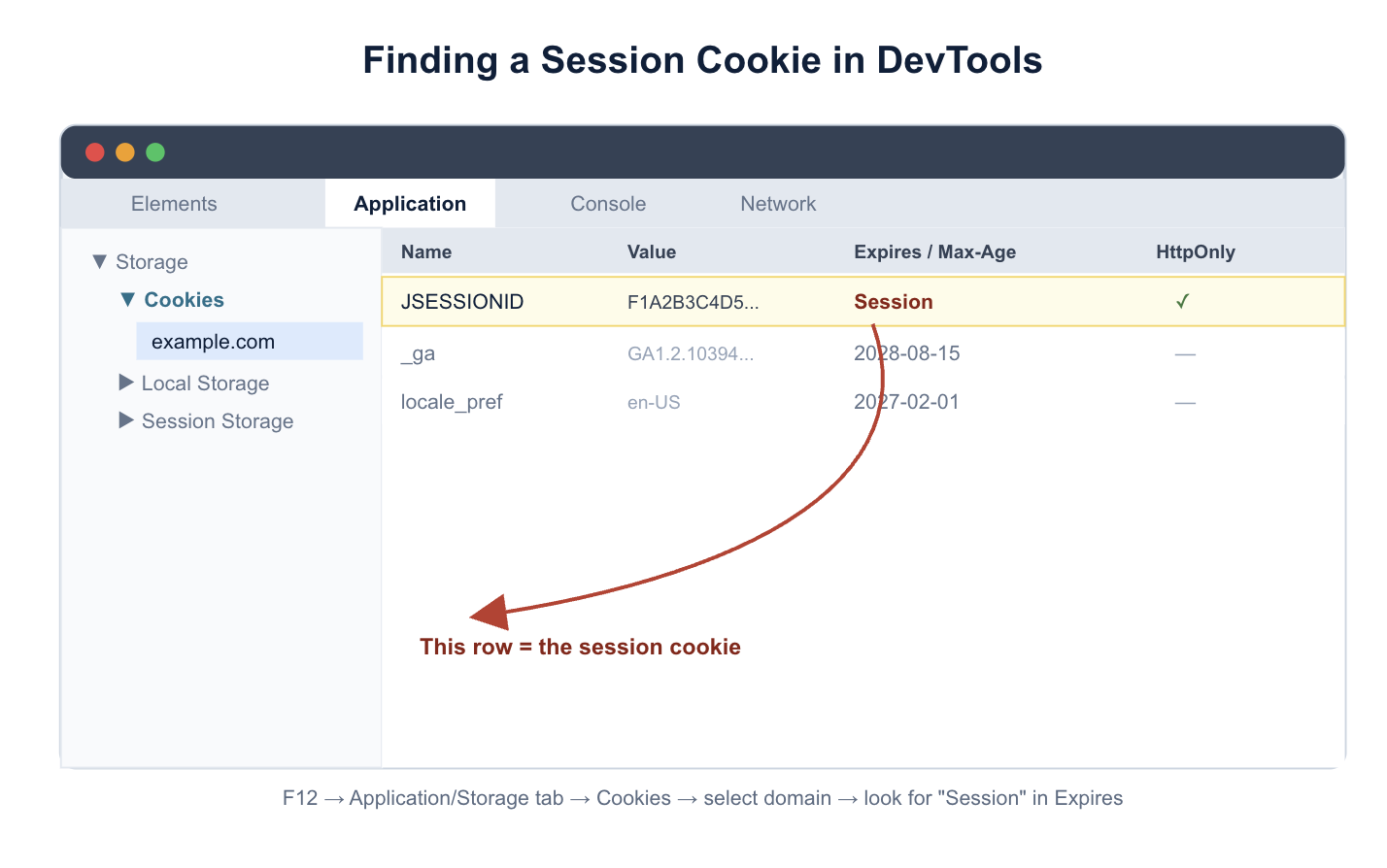
- Open the site in Chrome, Edge, or Firefox and press F12 (or right-click the page and choose Inspect) to open Developer Tools.
- Go to the Application tab (Chrome/Edge) or Storage tab (Firefox).
- In the left-hand panel, expand Cookies and click the site’s domain.
- You’ll see a table listing every cookie name, its value, domain, expiration, and flags like
HttpOnly,Secure, andSameSite. - Look for an “Expires / Max-Age” column that reads Session — that row is your session cookie.
One important caveat: if a cookie has the HttpOnly flag set (as most well-secured session cookies do), it’s specifically designed to be invisible to JavaScript running on the page — this is a deliberate security measure to block cross-site scripting (XSS) attacks from stealing it, not a bug. You can still see the cookie in DevTools’ cookie inspector even when HttpOnly is set; what’s blocked is a malicious script reading it programmatically.
What is a cookie on a website?
What are session cookies, and how do I enable them?
Nearly every browser has session cookies enabled by default, because most modern websites simply won’t function correctly without them — logins, carts, and multi-step forms all depend on them. If you’ve previously blocked all cookies and now find yourself logged out constantly or losing your cart between pages, here’s how to turn them back on:
Google Chrome
- Click the three-dot menu → Settings
- Select Privacy and security
- Click Cookies and other site data
- Choose Allow all cookies, or add the specific site to your Allowed to use cookies list
Microsoft Edge
- Click the three-dot menu → Settings
- Select Cookies and site permissions
- Click Manage and delete cookies and site data
- Toggle Allow sites to save and read cookie data on
Safari
- Open Safari → Settings (or Preferences)
- Go to the Privacy tab
- Uncheck Block all cookies
Firefox
- Click the menu → Settings
- Select Privacy & Security
- Under Cookies and Site Data, make sure Delete cookies and site data when Firefox is closed is unchecked if you want persistent cookies to survive, and confirm cookies aren’t fully blocked
If a specific site still won’t keep you logged in after this, check whether an ad blocker or privacy extension is stripping cookies on that domain — that’s a common secondary cause.
How to get (view) a session ID cookie
If you need to view a session ID cookie — whether you’re a developer debugging a login issue or you’re auditing a site’s cookie behavior for a privacy review — here’s the fastest path in each major browser:
In Chrome or Edge
- Visit the site and log in (if applicable), so a session cookie actually gets set
- Press F12 to open Developer Tools
- Click the Application tab
- In the sidebar, expand Storage → Cookies and select the domain
- Find the row whose Expires / Max-Age column says Session — its Value column shows the session ID
In Firefox
- Press F12 to open Developer Tools
- Click the Storage tab
- Expand Cookies and select the domain
- Locate the cookie with no fixed expiration date listed
Programmatically (for developers)
If the session cookie is not marked HttpOnly, it can be read from client-side JavaScript with:
console.log(document.cookie);If it is marked HttpOnly (the recommended, more secure configuration), this method will not return it — by design. In that case, the cookie is only visible server-side or via the browser’s own DevTools cookie inspector, never through page JavaScript.
One note worth flagging for anyone building or auditing a site: a session cookie showing up readable in document.cookie is generally a sign it’s missing the HttpOnly flag it should have — that’s a security gap worth fixing, not a feature.
Do session cookies require consent under privacy law?
Generally, no — and this is one of the more consistent points across major privacy frameworks. Session cookies that are “strictly necessary” for a site to function (keeping you logged in, remembering your cart) are typically exempt from the active consent requirements that apply to advertising and analytics cookies under laws like the GDPR and the ePrivacy Directive. The legal basis usually cited is “legitimate interest” or “necessity for the performance of a service the user requested.”
That exemption has limits, though:
- The exemption covers the cookie’s function, not its label — a cookie named “session_id” that’s actually being used to build an advertising profile doesn’t qualify as strictly necessary just because of its name.
- You’re still generally required to disclose the use of session cookies in your privacy policy or cookie notice, even without a consent banner.
- If a “session” cookie is repurposed for cross-site tracking or analytics beyond what’s needed to run the site, it can lose its exempt status and require the same consent treatment as a persistent tracking cookie.
How Captain Compliance helps
Knowing the difference between a session cookie and a persistent tracking cookie is one thing — proving it to a regulator, and keeping your cookie banner accurate as your tech stack changes, is another. Captain Compliance continuously scans your site’s cookies and tags, classifies them automatically, and keeps your consent banner and privacy disclosures in sync with what’s actually running — backed by IAB TCF validator certification.
See how Captain Compliance automates cookie classification and consent →
Session cookie FAQs
What is a session cookie in simple terms?
It’s a temporary marker your browser holds onto for the length of one visit to a website, so the site can tell it’s still talking to the same visitor from one page to the next. It disappears when you close the browser.
Are session cookies dangerous or a privacy risk?
On their own, session cookies are considered lower-risk than persistent tracking cookies because they’re short-lived. The main risk is session hijacking — if an attacker steals an active session cookie (through an unsecured connection or a cross-site scripting attack), they can potentially impersonate the logged-in user until the session ends. Sites that use HTTPS, the HttpOnly and Secure flags, and short session lifetimes significantly reduce this risk.
Do session cookies get deleted automatically?
Yes, in principle — they’re designed to be cleared when the browser closes. In practice, features like session restore, “reopen closed tabs,” or mobile apps running in the background can cause them to persist a bit longer than expected, since the browser process technically hasn’t fully terminated.
Can I block session cookies without breaking a website?
Usually not cleanly. Because logins, shopping carts, and multi-step forms depend on session cookies, blocking them typically breaks core site functionality — you may get logged out immediately or lose form progress between pages. If you want to limit tracking without breaking sites, target third-party and persistent tracking cookies instead, which is what most browser privacy settings and extensions are built to do.
Is a session ID the same thing as a session cookie?
Not quite. The session ID is the unique string of characters identifying your visit; the session cookie is the small file that carries that ID between your browser and the server. The ID is the data; the cookie is the delivery mechanism.
Put this into practice
Turn privacy guidance into working controls.
Captain Compliance helps teams discover tracking technologies, enforce consent, manage privacy requests and document the evidence behind every decision.